Introduction
When Bot Buster has something important to share, an alert is created. Alerts are created live and can be viewed, investigated, assigned and acknowledged all from the Alerts Dashboard.Alert Icon
The current number of unacknowledged alerts can be seen at all times by looking at the number next to the bell icon on the top right of the page.
Alert Dashboard
The Alerts Dashboard is accessed by clicking on the bell icon. On the dashboard, it’s possible to view/manage alerts.Alert Filtering
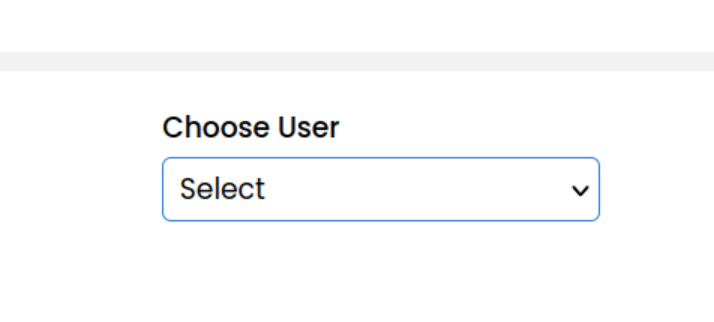
Alerts can be filtered by time and their state to show only acknowledged, unacknowledged or both. The Choose User drop-down is used to assign an owner and not as a filter.
Alert Table
Each alert gets a timestamp, message, severity, initiator, acknowledged status, URL and owner. Alerts are categorized by severity (High, Medium, Low). The initiator is the creator of the alert and can be either a website owner or a website visitor. The table also shows if alerts were acknowledged. Some examples of alerts include increases in blocked bots, website visitor identified fraud, new chat messages, stolen customer passwords and more. Lastly, alerts can be assigned an owner. This is not required and is only to help organize who should take responsibility.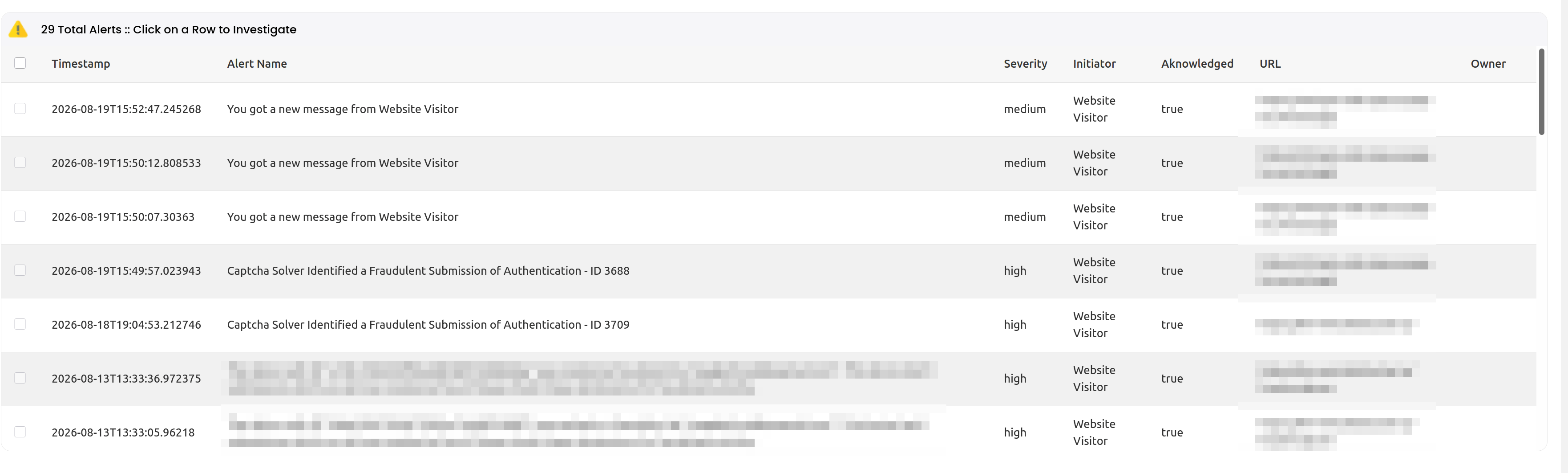
Acknowledging Alerts
It’s useful to acknowledge alerts so that only those which have not been seen get attention. To acknowledge an alert, check the alerts to acknowledge and click the acknowledged button. This will also reduce the number of unacknowledged alerts showing on the bell icon.Go Directly to Issues
If a row is clicked, it will send the user to the location of the alert.Assign Alert Owner
To assign an owner to an alert, check the alerts which are not yet acknowledged and select a user from the drop-down and then press the button “Apply Owner”.