Introduction
Use the Fraud Explorer dashboard to find and manage fraud.Dashboard Filters
The data in the dashboard can be filtered when selecting the Change Search Filters drop-down. Here it is possible to filter website visitor statistics based on the time, URL Locations, countries submissions were completed from (based on IP Address location), submission types, tags, submission status, submission ID, Quick Check ID, email addresses which sent the submission, bot identification and fraud score. The search filters can be reset to default values with the reset button. When filters are changed and apply filters is pressed, the elements will recalculate on the page limited to those choices.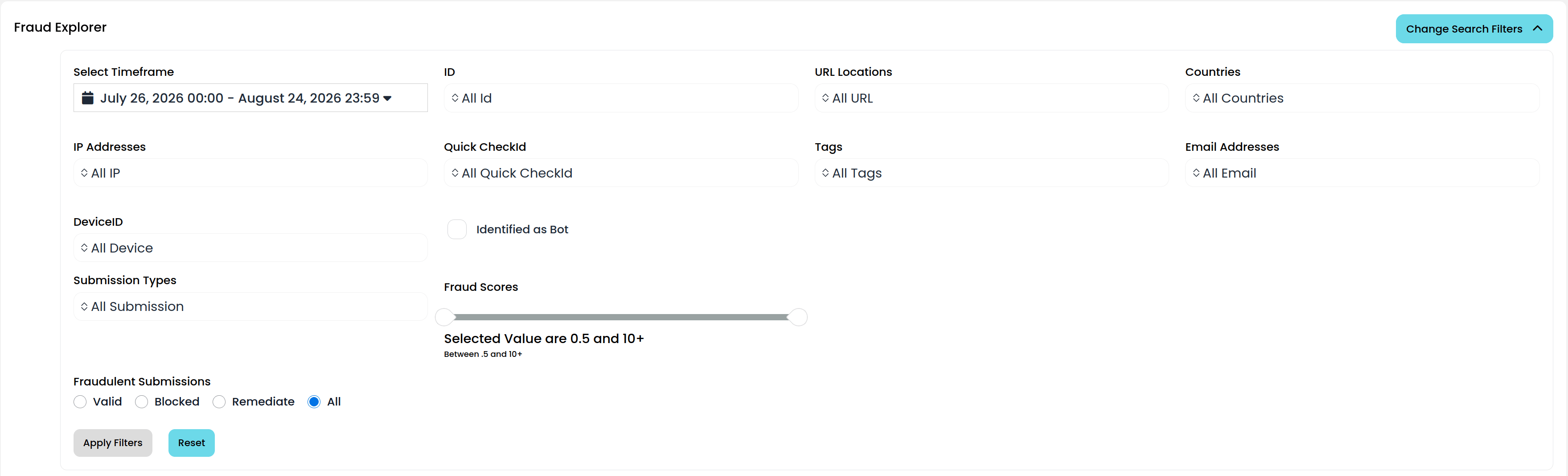
Top Statistics

- Solver Identified Incidents :: The number of fraudulent submissions identified by website visitors.
- Website Owner Identified Incidents :: The number of fraudulent submissions identified by you or your team.
- Total Number of Incidents :: The number of submissions which have been identified as fraudulent by your team or by your customers.
- Open Incidents :: The number of incidents which have not yet been remediated.
- Resolved Incidents :: The number of incidents which have been remediated.
Quick Check Submission History Table
This table is where you search for potentially fraudulent submissions, view submission details and manage fraudulent incidents. To see more details about a submission, click on the row in the table for that specific submission. Clicking on a row will take you to the Submission Details page for that submission. Columns on the table can be added or removed by clicking the arrow on the top right of the table. The table can be downloaded as a csv file anytime. The table columns can also be sorted by clicking on them.Submission Actions That Can Be Taken
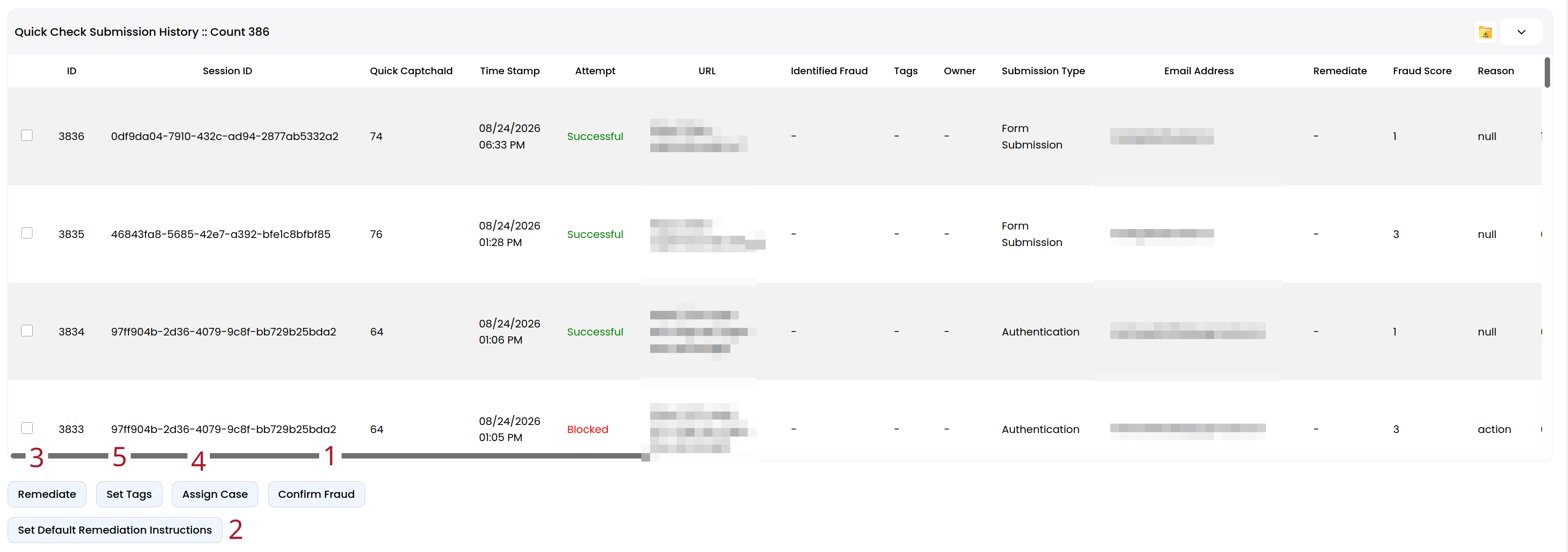
- Confirm Fraud To mark submissions as fraudulent, check the rows you want to mark and then click the Confirm Fraud button.
- Set Default Remediation Instructions Use this button to create remediation instructions which website visitors are able to see when they mark a submission as fraudulent.
- Remediate Fraud To remediate fraudulent submissions check the rows you want and click the Remediate button.
- Assign Case To assign a case, check one or more of the rows and click the Assign Case button. Only admins can assign cases to other platform users. If your account is not an admin you can only self assign the case.
- Set Tags Custom tags can be added to submissions by selecting the rows and pressing the Set Tags button. Custom tags make identifying certain submissions easier by adding filters for them across the platform.
When a Website Visitor Identifies a Fraudulent Submission
When a submission is reported as fraudulent by a website visitor, the company provided remediation steps are unlocked if you choose to add them. A chat window also becomes available for direct communication between the website visitor and the website. The remediation instructions and chat for each fraudulent submission are on the Submission Details page for that specific submission.Adding Remediation Instructions
Upon initial installation of Bot Buster, it is recommended but not required to set default remediation instructions. These messages are provided to any customer of yours who has identified a fraudulent submission. They are used to direct your customers on what actions to take if they confirm fraud. Remediation instructions are unique to each submission type. To add or update instructions, please click on the instructions row to enter the text as needed.Submissions by Location
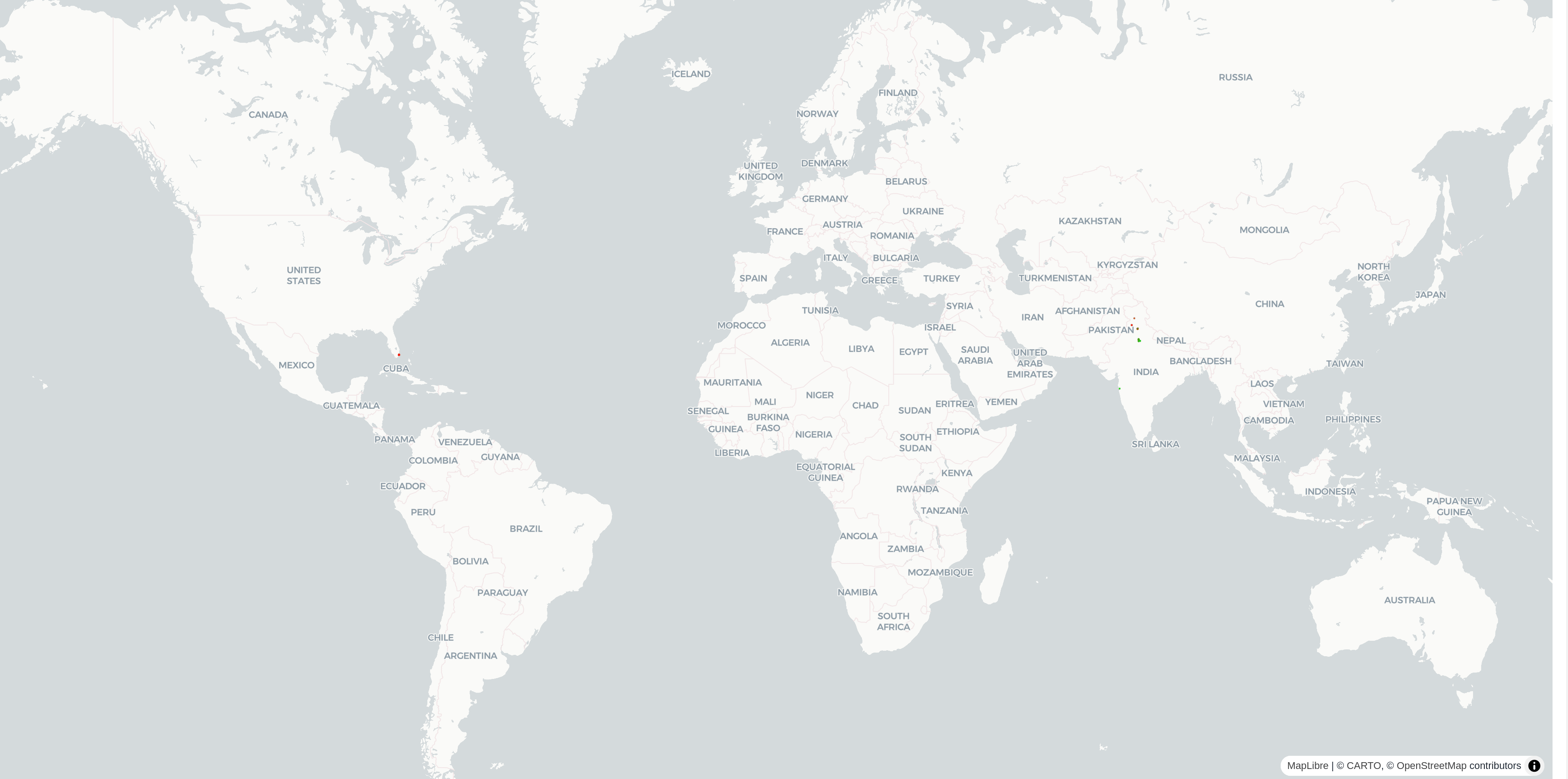
This section shows the submissions by location on a map.